
How to Share Cases and Documents with a Partner Firm
This guide explains how the firm that owns a case can share it with a partner firm, and how the receiving firm can work with the shared case.
Sharing Firm: The Firm That Owns the Case
Step 1: Open the Case
Step 2: Share the Case with a Partner Firm
Click the Share with [Partner Firm Name] button.
Note: This button only appears when your firm has an existing partnership configured by a VCH administrator. Firm partnerships are not currently self-service.
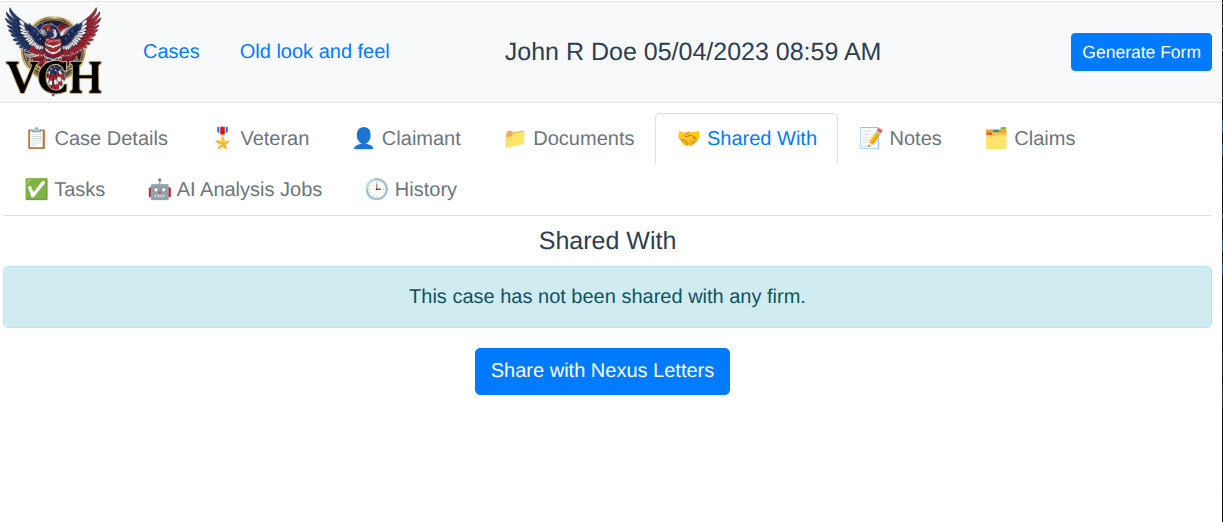
Step 3: Confirm the Case Is Shared
After the case is shared, it will appear in the partner firm’s Shared Cases list.
The partner firm initially receives access to only the following information:
- Veteran or claimant name
- Date of birth
- Last four digits of the Social Security number
Step 4: Share a Specific Document
Sharing a case does not automatically share all of its documents. Documents must be shared individually.
- Open the Documents tab.
- Find the document you want to share.
- Click Share in the document’s row.
The Share option only appears when:
- Your firm originally uploaded the document.
- The document was not uploaded and shared back by a partner firm.
- Your firm has at least one configured partner firm.
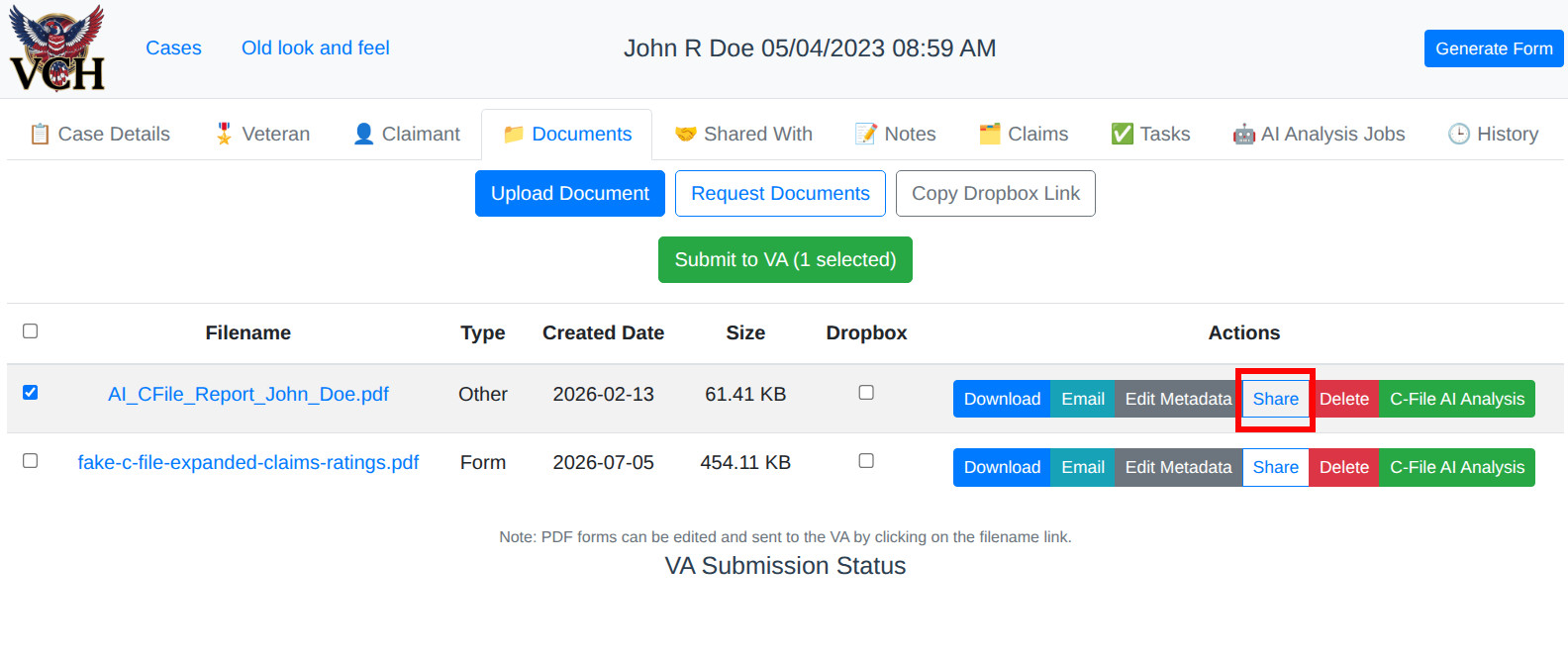
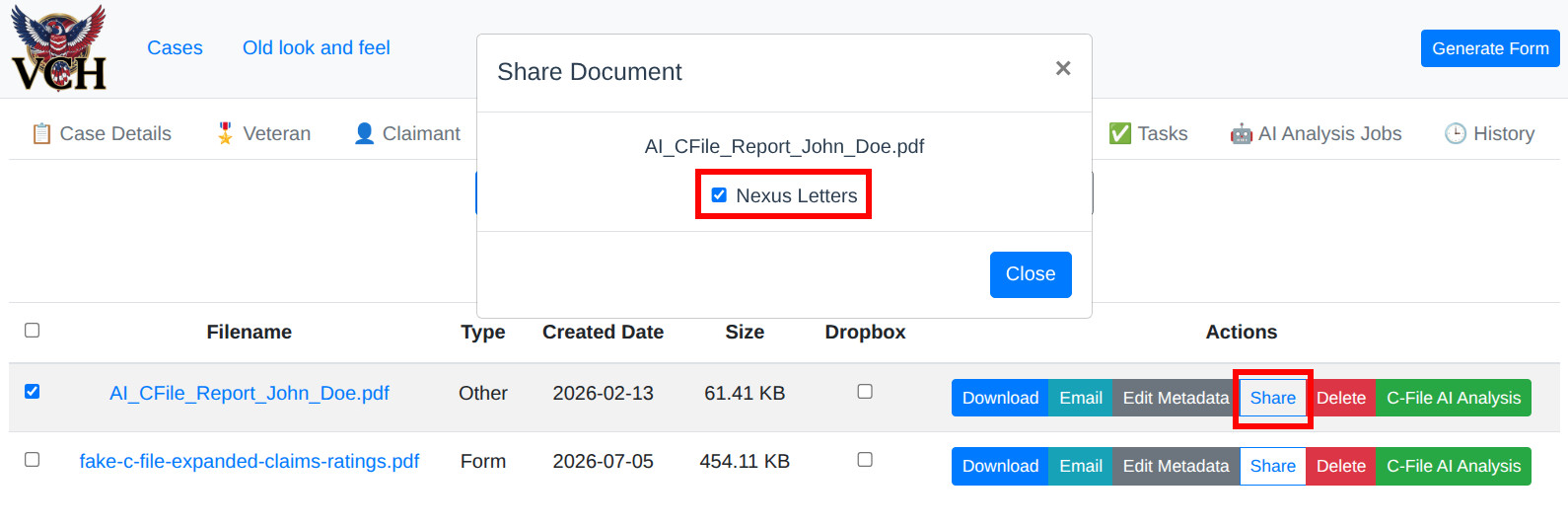
A Share Document window will open. Select the checkbox beside each partner firm that should receive the document, then confirm the selection.
Step 5: Revoke Access to the Case
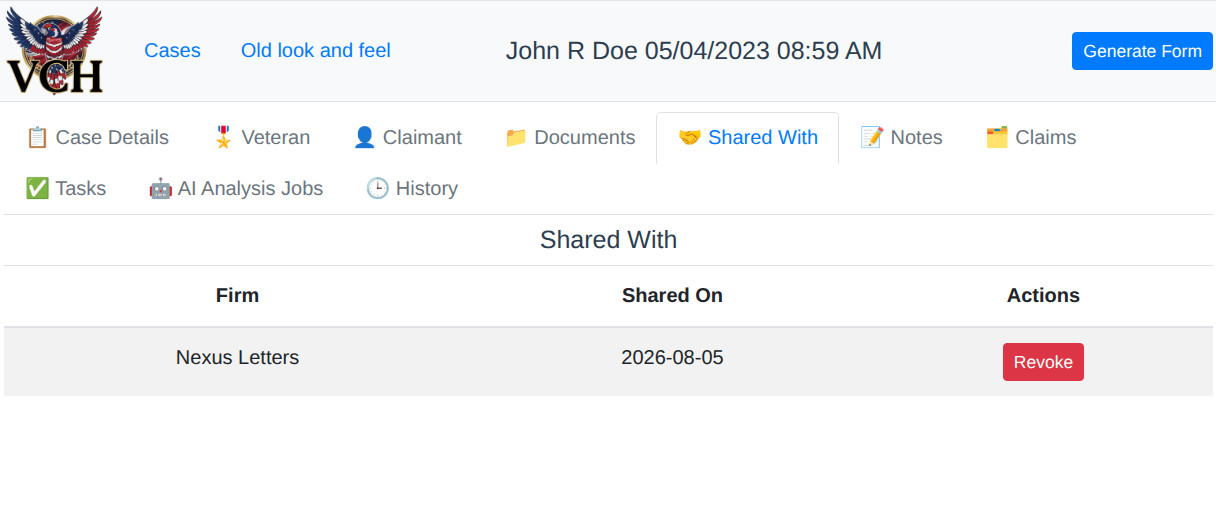
To completely remove a partner firm’s access to the case:
- Return to the Shared With tab.
- Click Revoke beside the partner firm.
- Confirm the action in the confirmation dialog.
Partner Firm: The Firm Receiving the Shared Case
Step 1: Open the Shared Cases List
Select Shared Cases from the navigation menu.
Shared cases appear in a separate list from cases owned directly by your firm.
Step 2: Open the Shared Case
Click a case row to open the Shared Case Detail page.
This page displays the limited claimant information shared by the owner firm, along with:
- Shared By: The firm that owns the case
- Shared On: The date the case was shared
Step 3: Use the Documents and Tasks Tabs
The Shared Case Detail page contains two tabs:
- Documents
- Tasks
Step 4: View and Download Shared Documents
On the Documents tab, the partner firm can only see documents that the owner firm explicitly shared.
Shared documents include a badge or marker identifying them as documents received from the owner firm. The partner firm can click Download to save a copy.
Step 5: Upload a Document
Click Upload Document to add a new file to the shared case, such as a completed nexus letter.
Step 6: Share an Uploaded Document Back with the Owner Firm
Documents uploaded by the partner firm are initially private to that firm. They are not automatically visible to the firm that owns the case.
To share an uploaded document back with the owner firm, click:
Share with [Owner Firm Name]
After the document is shared, the button changes to:
Unshare from [Owner Firm Name]
Clicking Unshare removes the owner firm’s access to that document.
Important Sharing Notes
- Sharing a case does not automatically share every document in the case.
- Each document must be explicitly shared with the appropriate partner firm.
- Documents uploaded by a partner firm remain private until the partner firm shares them back with the owner firm.
- Revoking case access removes the partner firm’s access to the shared case.
- Partnerships between firms must currently be configured by a VCH administrator.